Legacy
Working with Dates and Times in Bubble.io — a primer

Photo by Trnava University on Unsplash
Photo by Claudio Schwarz on Unsplash
Introduction
Working with dates and times in Bubble can be confusing at the beginning.
Here is some important information to get you started!
Understand the data
Dates and times in Bubble (and databases generally) are stored as a number! Ok, you see a date and time in the Bubble editor, but the underlying data is a number.
And that number is the number of milliseconds past the Unix epoch of 1st of Jan, 1970 in Universal Coordinated Time (UTC)!
Why should you care? It’s good to know how databases store date and time, because it explains why all the functions (ways of altering this data) work the way they do — and also why sometimes a null (empty) date value can result in 1/1/1970!
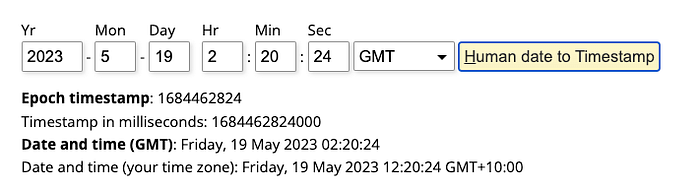
Image credit: visit https://www.epochconverter.com/
Structure the data
It might be tempting to store dates and times in separate data types. But now we understand how databases store date & time values, we know it doesn’t make that much sense.
When you create a field in Bubble with a date datatype, it is actually storing the date and time!
Anywhere you see “date” datatype, think “date and time”.
It is generally best to store dates and times in a single field with the date datatype.
If you want a good reference point, check out the Full Calendar plugin by Bubble, and look at what parameters it takes for an event. It asks you to specify a single datatype to plot on your calendar (e.g. it could be called “Calendar Event”) and then asks you to specify the start DateTime and end DateTime fields in this data type.
So if you’re working with concrete dates and times (e.g. to display on a calendar), then this is how you need to structure your data.
Get Will Ericksson’s stories in your inbox
Your data type should look as follows:
Datatype : Calendar Event

Field 1: Event Name (text)
Field 2: Start Datetime (date)
Field 3: End Datetime (date)
Understand date expressions and modifiers
Bubble has a lot of really useful functions (e.g. dynamic expression modifiers) that can help you manipulate date (date-time!) values.
Read more here in the Bubble manual.
Some of my favorites:
- Current datetime — self-explanatory, returns the current date & time!
- +(days): 1 — add or subtract days from a datetime. Subtract by specifying a negative integer (whole number) value. There are similar functions for hours, minutes, months, years.
- …change hours to… — sets the hours in the provided datetime at whatever you need, e.g. “0”. The same works for seconds, minutes, days, months, years.
- Rounded down — I often like to round dates down to midnight for logical operations where you want all the data for a day. Combine round down with +(days):1 to get the next day (at midnight). You will also need to specify a timezone here.
- Extract from date — day. If you need to extract a specific component, e.g. the day of week, you can do it with “extract from date”. No need to store this data separately. Same for minutes, hour, date, week, month or year.
Remember, dates are specific points in time
Remember when writing < or > expressions that a date alone represents midnight on that date. So “< May 1, 2023” will only return values in April, and exactly midnight on May 1, but not a millisecond after midnight on April 30. So if you are expecting values on May 1, you’d need to use:
Some date field < Some other date field
:rounded down to date
:+(days):1
What if I need to store a time window, and apply it to future dates?
You can store a specific time, e.g. 9 am, in a date field. Just use the current date and set the time as you want.
Then when you want to recreate the time with a different date, use the new date, and use:
New date field
:change hours to
Stored date field:Extract from date(hours).     //date containing the time
:change minutes to
Stored date field: Extract from date(minutes)
:change seconds to 0
Conclusion
Pretty much everything you want to do with dates can be accomplished using the above information. You can also delve into date ranges and date intervals if you want to get more advanced, but this covers the basics and the common mistakes made when starting out.
To learn more about building well-designed, scalable applications in Bubble — check out our 8-week course to become a professional developer at Momentum Academy!
Where this story went
We spent five years mastering Bubble. Now we build with AI.
Momentum was one of the world's leading Bubble.io agencies — that's why we wrote this article. These days we build and migrate the same kinds of products with Claude Code: real, portable code your own team can amend with AI. If you're weighing up a move off Bubble (or any platform), we've made the journey ourselves.
Related posts
Legacy
**What a Founder’s 1,500-Prompt Failure Taught Me About AI and Vibe Coding**
Recently I had a call with a founder who was looking for advice about building with Bubble.io. He came to me after experimenting with vibecoding , an emerging…
Legacy
In the brave new world of AI coding: Why we’re doubling down on Bubble.io in our agency/venture studio.
Introduction Tool obsession It’s 2025. There’s lots of excitement/hype about generative AI and coding. There’s also a small ocean of opinions about the various…
Legacy
Why Learning Bubble Still Matters in the Age of AI
If you’ve been curious about building apps with Bubble.io, you’ve probably asked yourself at least once: “Isn’t AI going to do all of this for me soon?” It’s a…